Deploy to Firebase Hosting
In the previous post we deployed the web app to GitHub Pages. After a few adjustments we were able to log in but were facing a same-origin policy issue.
Now let’s deploy our app to Firebase Hosting instead. This acts as a preparation to use Firebase Functions as a proxy to overcome the issue with the same-origin policy.
Set up Firebase Hosting
First of all we need to create a Google Account. After that we can access the Firebase Console.
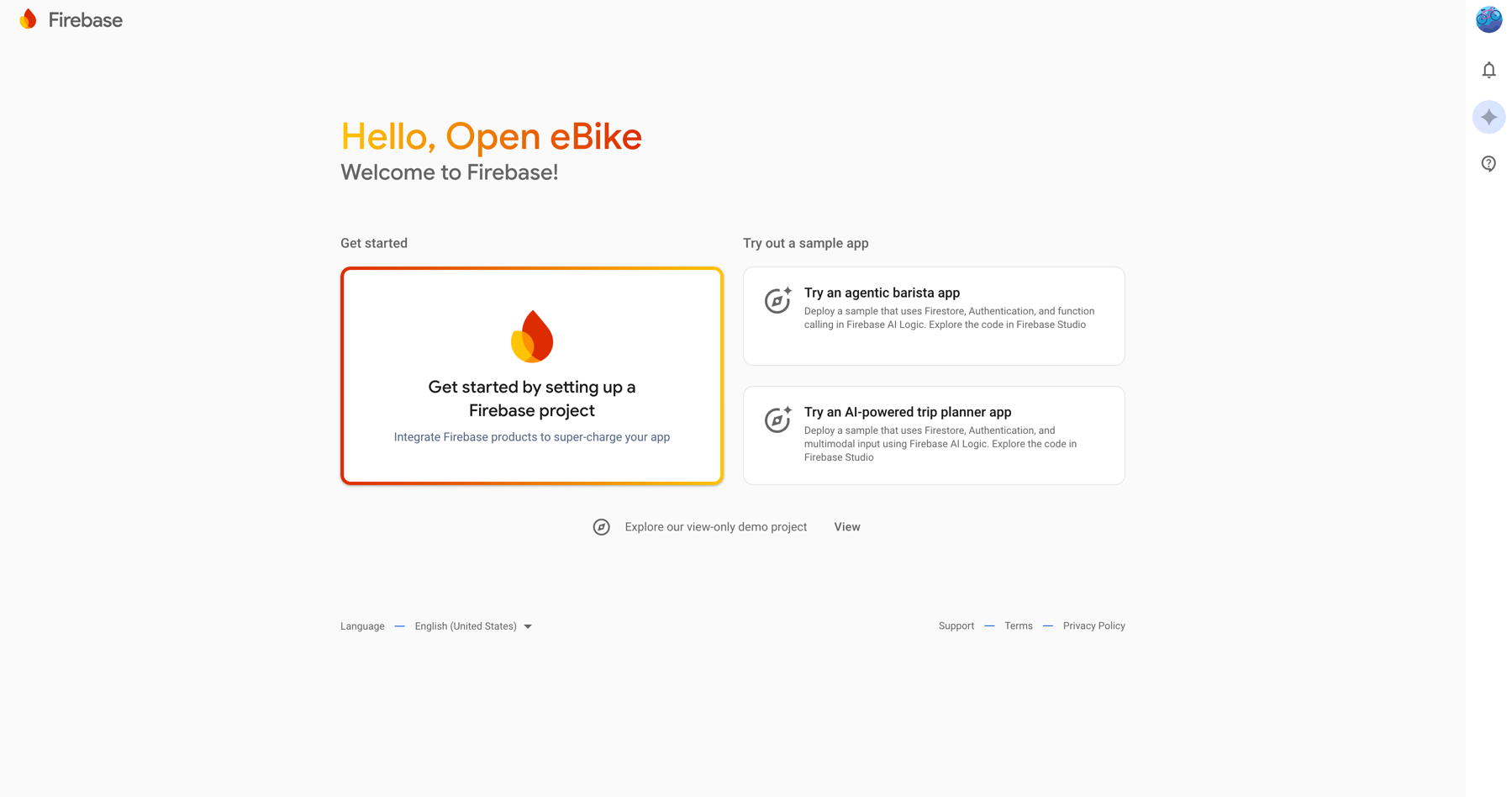
Here we can create a project that we will call Open eBike.
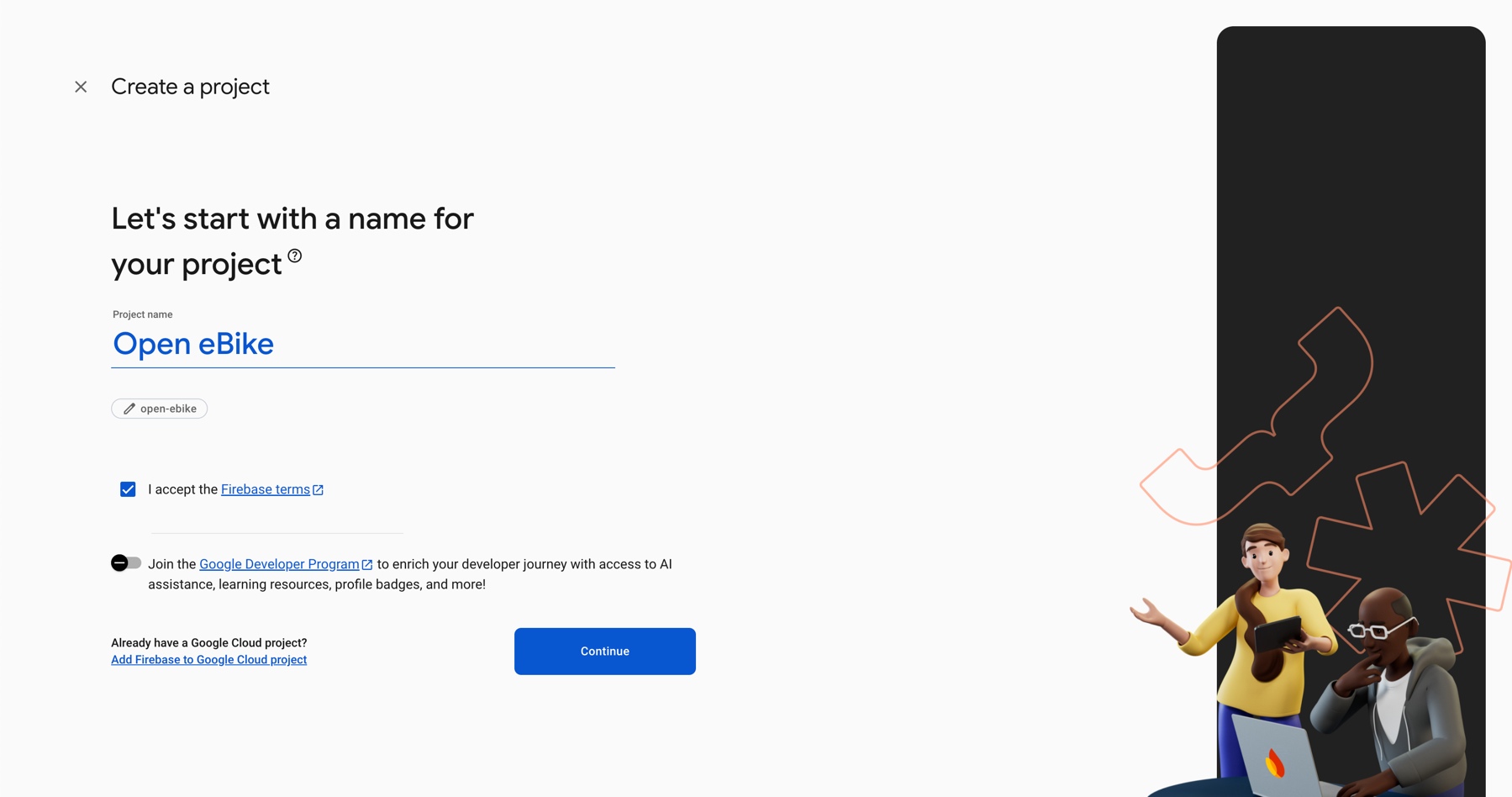
After disabling Gemini and Google Analytics for now we are now ready to use the Firebase Console.
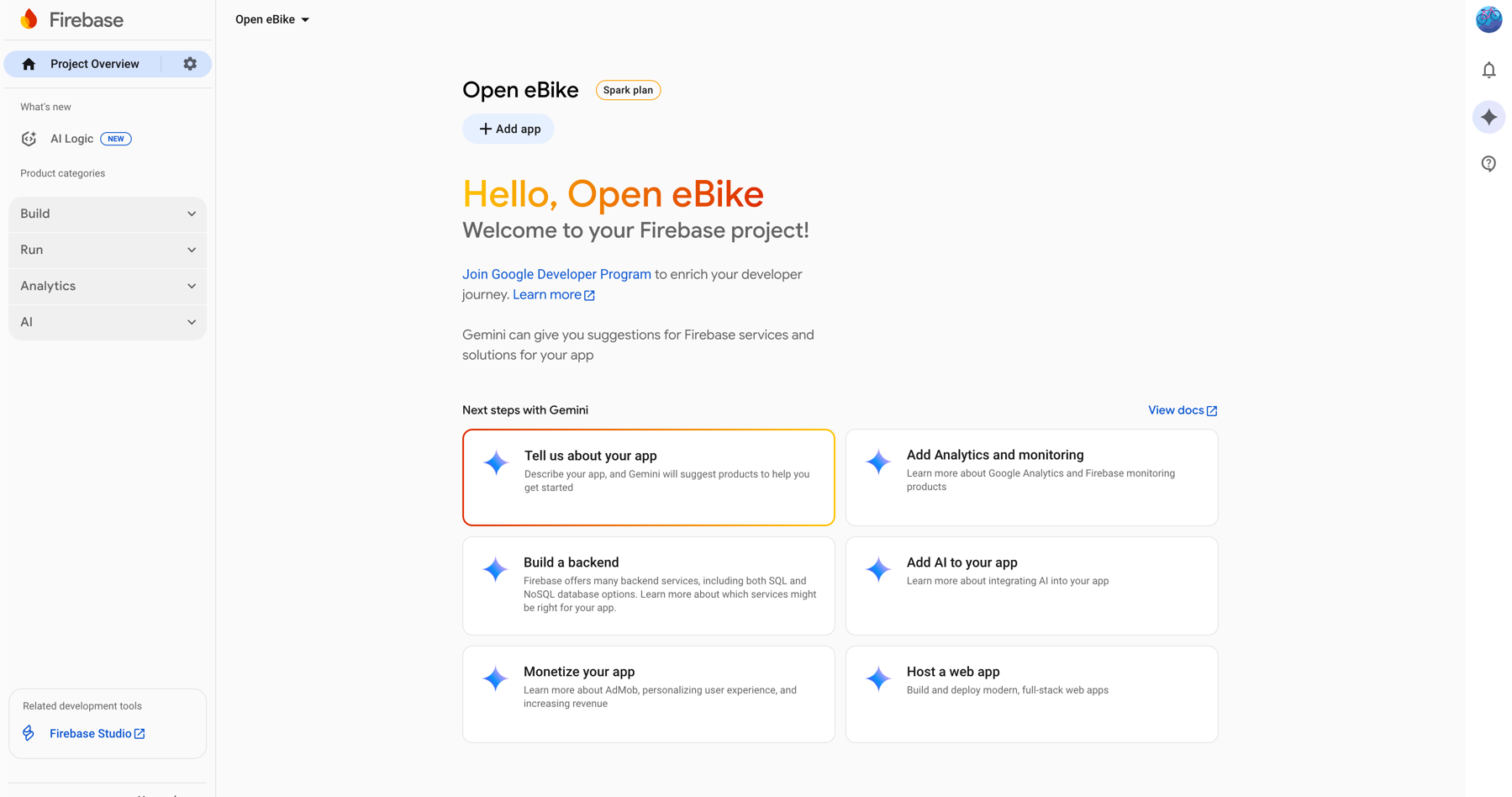
Here we can follow the link Get started to set up our web app.
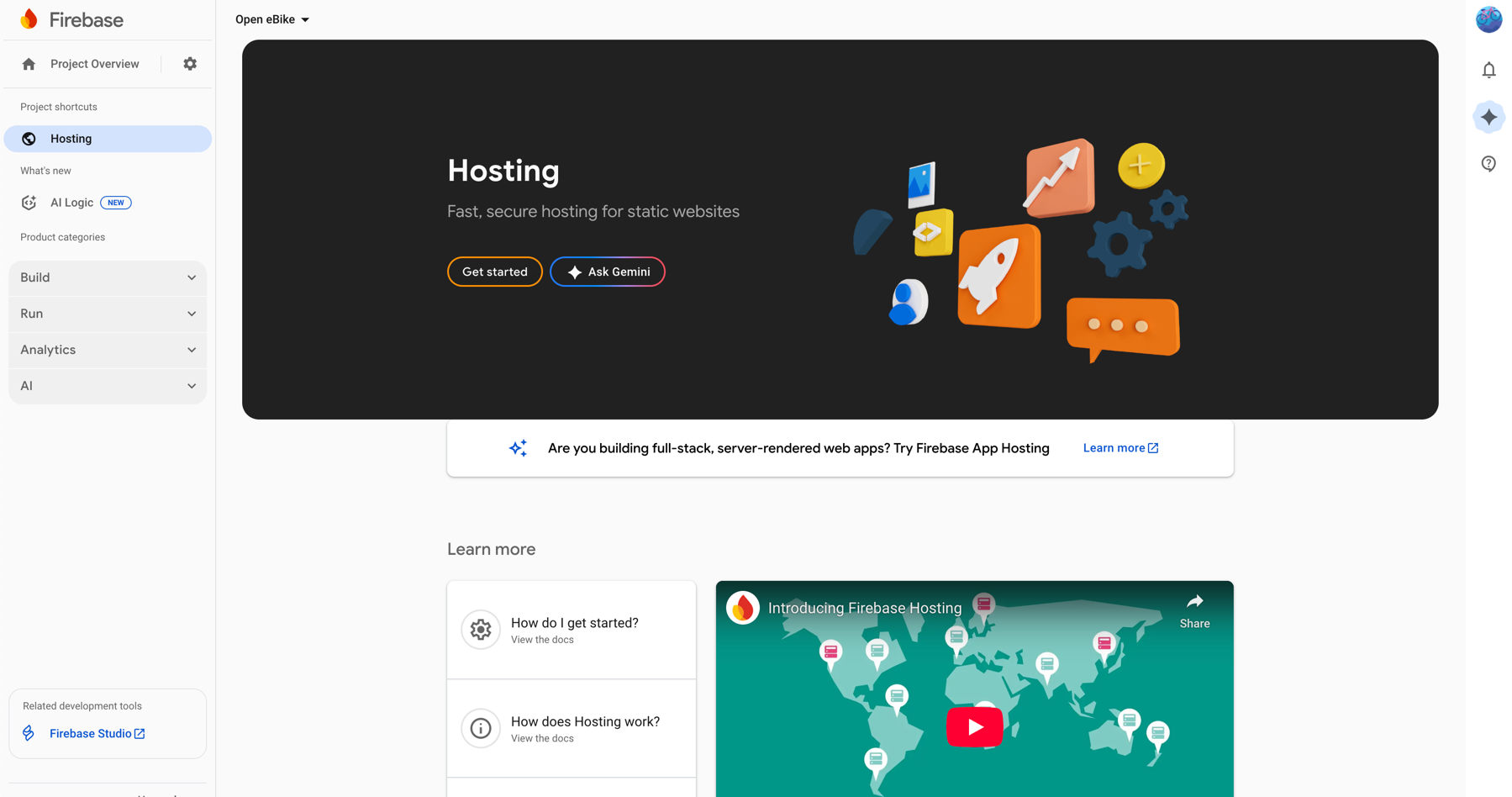
As the getting-started guide suggests to do the following steps
- install Firebase CLI
npm install -g firebase-tools - sign in to Google
firebase login - initiate the project
firebase init
During the project setup we answer the questions as follows:
- Which Firebase features do you want to set up for this directory? Hosting
- Please select an option Use an existing project
- Select a default Firebase project for this directory open-ebike (Open eBike)
- What do you want to use as your public directory? dist/open-ebike-frontend/browser
- Configure as a single-page app (rewrite all urls to /index.html)? Y
- Set up automatic builds and deploys with GitHub? N
After a successful setup we can deploy our app manually by running the following commands
npm run build
firebase deploy --only hosting
In the Firebase Console we can now see our deployment.
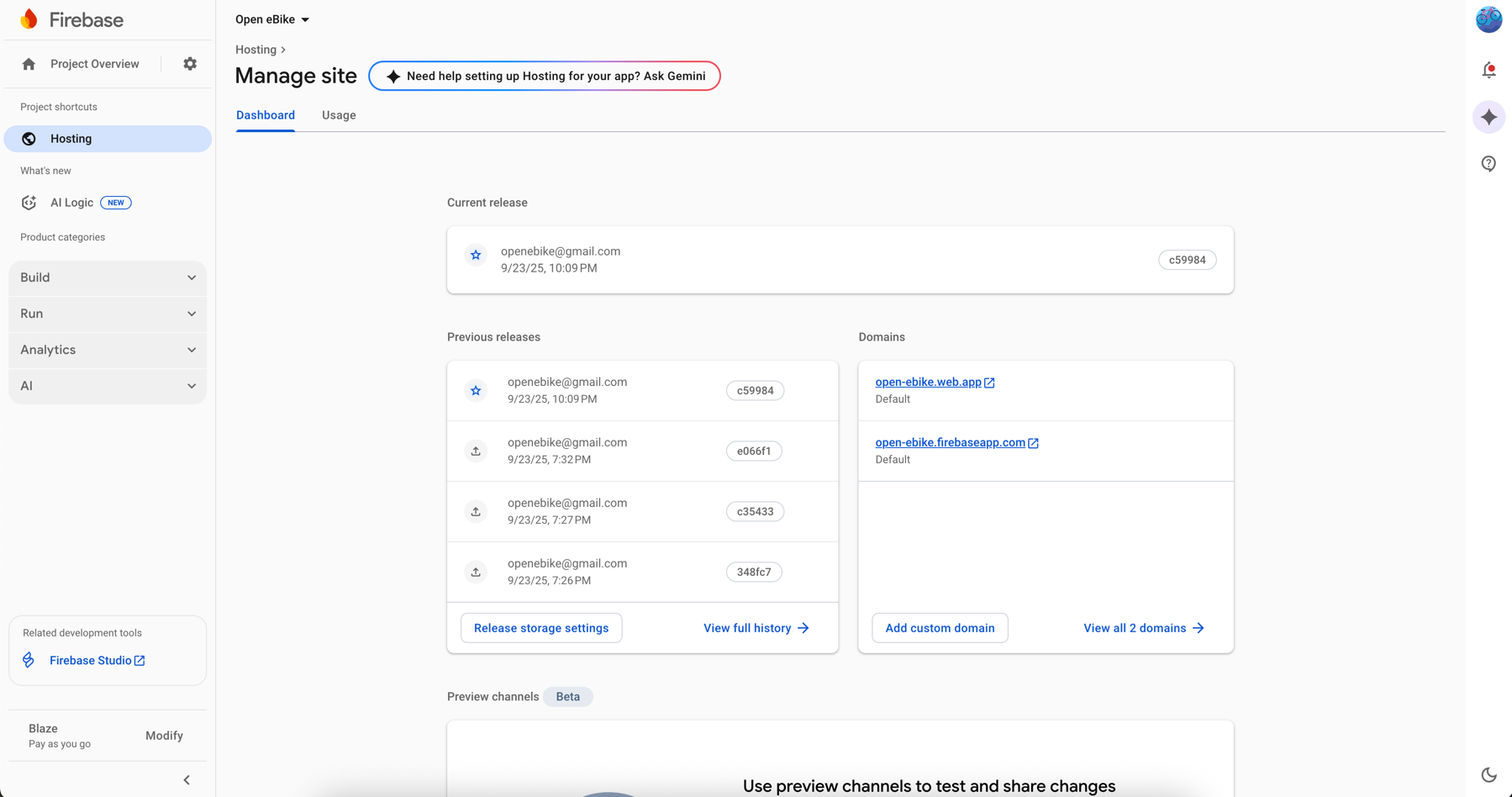
Voilà, the web app is available at https://open-ebike.web.app.
Set up automatic deployment
The easiest way to automate the deployment to Firebase Hosting is to use GitHub Actions.
We will need a firebase token which we can get by calling this command
firebase login:ci
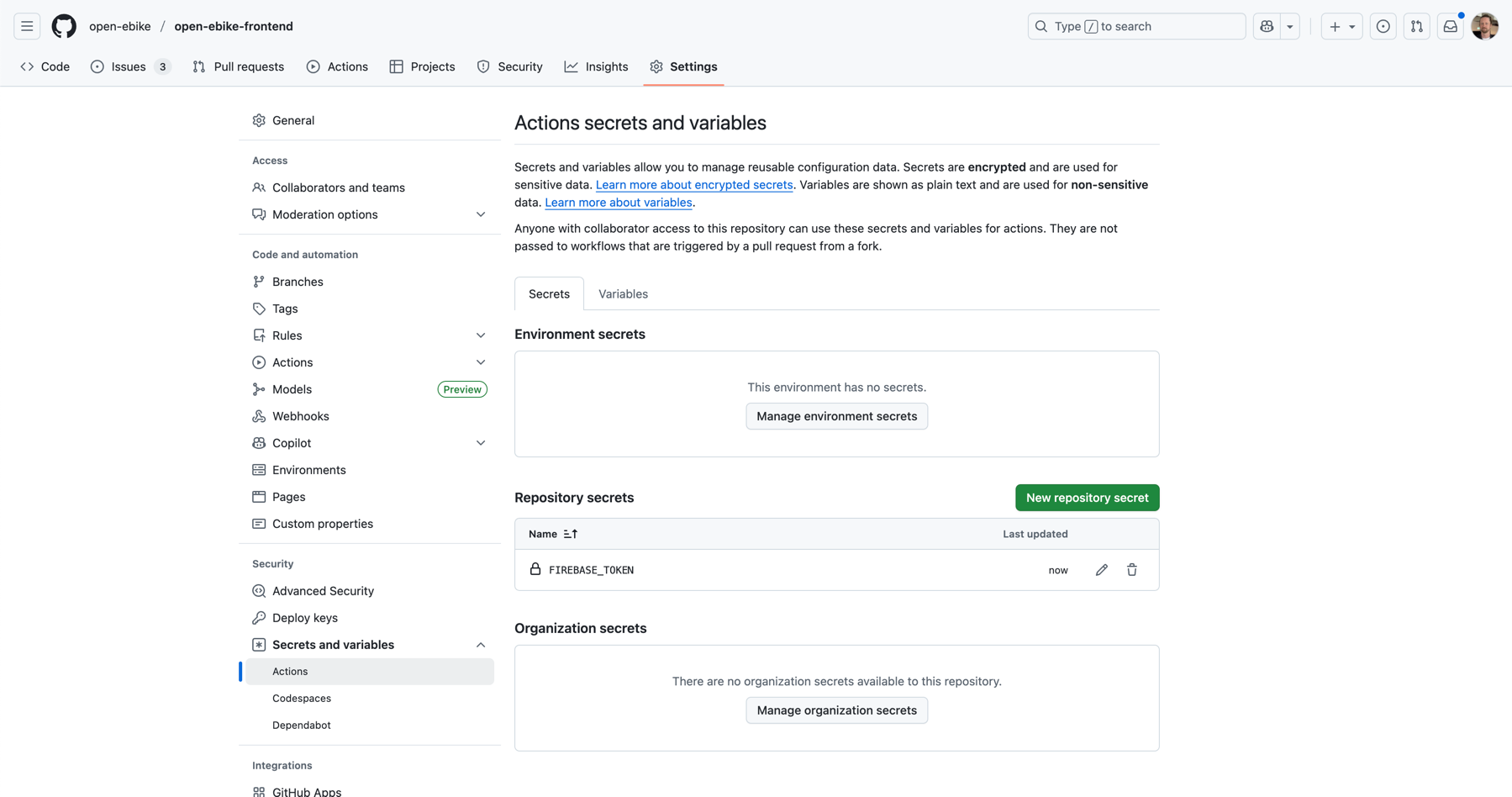
We need to store the retrieved token as a repository secret which can be created on the settings page of our GitHub repository.
In the Secrets and variables section we selected Actions and then New repository secret to do so.
Last we store our token as FIREBASE_TOKEN so that it can be used by GitHub Actions.
Now let’s create a GitHub Action that builds the app and deploys it to Firebase Hosting.
For that we specify a workflow in .github/workflows/deploy-app-firebase-hosting.yml which looks like this
name: Deploy Angular App to Firebase Hosting

on:
  push:
    branches:
      - main
jobs:
  build-and-deploy:
    runs-on: ubuntu-latest

    steps:
      - name: Checkout Code
        uses: actions/checkout@v4

      - name: Set up Node.js
        uses: actions/setup-node@v4
        with:
          node-version: "23"

      - name: Install Dependencies and Build
        run: |
          npm ci
          npm run build -- --configuration production

      - name: Deploy to Firebase Hosting
        uses: w9jds/firebase-action@master
        with:
          args: deploy --project open-ebike --only hosting
        env:
          FIREBASE_TOKEN: $
Our workflow is configured to run whenever changes are pushed to the main branch.
Let’s take a deeper look into the different steps.
- the first step checks out the code
- the second step sets up Node.js which is needed to build the app (we can use the same version as we did during development)
- the third step installs dependencies and builds the app specifying the configuration to be
production - the final step deploys the compiled app to Firebase making use of the token we generated and stored earlier
Configure redirect URL
Similar to the approach described in the previous post the login does not work because our client application does not accept the provided redirect URL.
We need to register another client application at https://portal.bosch-ebike.com (as described in an earlier post) with the following settings:
- client application name: firebase-hosting-public
- login URL: https://open-ebike.web.app
- redirect URL: https://open-ebike.web.app/*
- confidential client: no
Of course, we need to grant the newly created client application access to the data generated by our eBike via https://flow.bosch-ebike.com as described in an ealier post.
To use this client we add a separate environment configuration that will be used during the deployment.
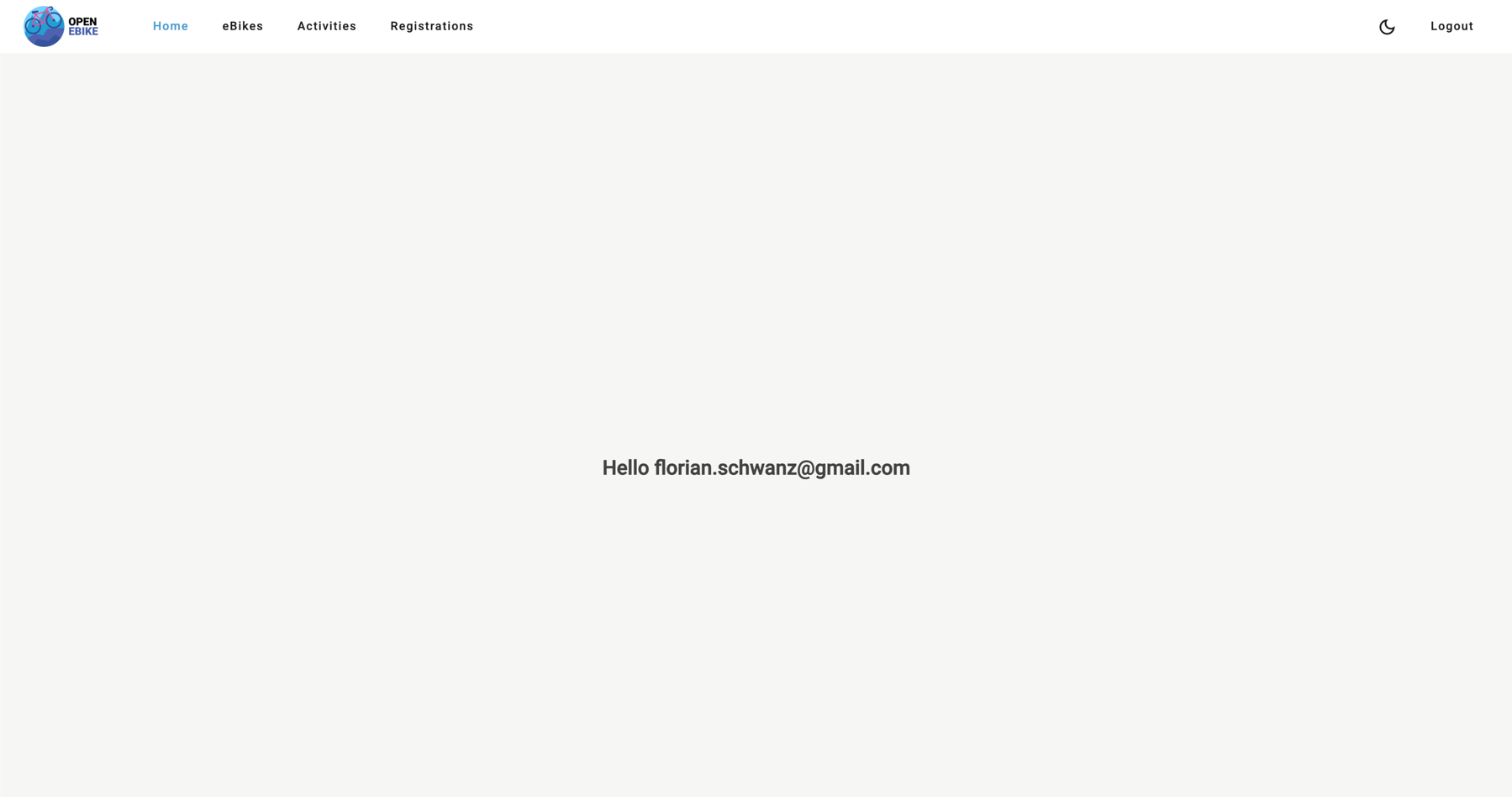
Et voilà, the login now works.
Address the issue with same-origin policy
Calling the Bosch eBike System APIs https://api.bosch-ebike.com runs into the same issue we discussed in the previous post.
To address this in the next post we will implement a way to bypass it by using Firebase Functions.